
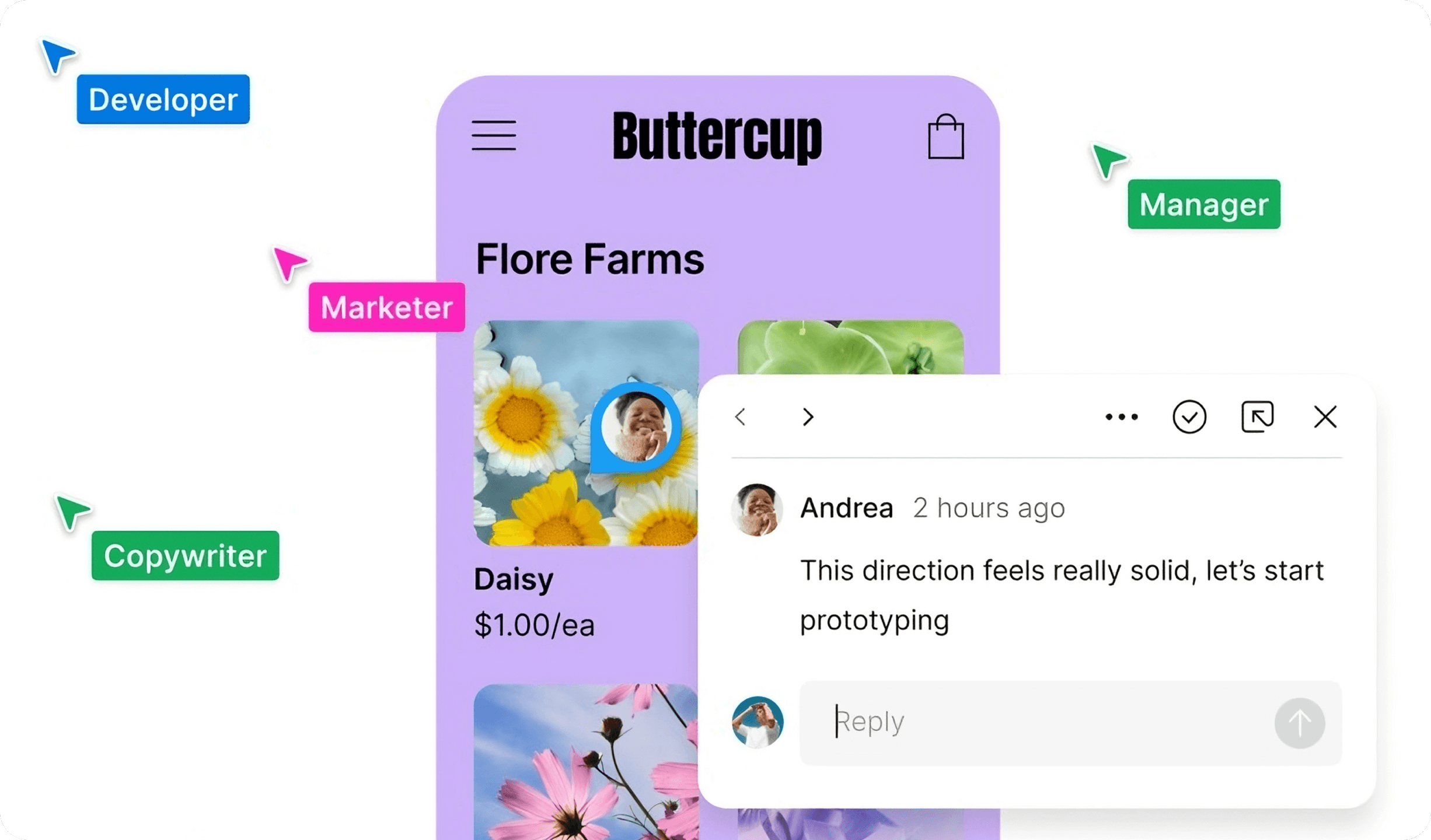
1. What is Figma Software
Figma is a cloud-based online design collaboration tool that requires no local installation. Users can design anytime, anywhere via a browser. It breaks the constraints of traditional design tools limited by devices and operating systems. Whether on Windows, Mac, or Linux, as long as there is an internet connection and a browser, you can easily use Figma
Founded by Dylan Field and Evan Wallace in 2012, Figma aims to create a new design tool to solve the pain points of collaboration and cross-platform use in traditional design software. Figma launched its free preview version by invitation on December 3, 2015, and officially released it to the public on September 27, 2016, attracting widespread attention in the design community
In 2017, Figma launched paid plans, further consolidating its position in the professional UI design software field. In 2018, Figma was still a relatively niche design tool with a valuation of only $100 million, but after just three years of development, its valuation reached $10 billion in 2021. By 2022, amidst a weak market environment, Figma was acquired by Adobe for $20 billion

As Figma continues to grow, its functions have gradually improved, launching important features such as prototyping, team collaboration, and version management, attracting more and more designers and teams. With the continuous growth of users, Figma has also received large investments, further promoting its product R&D and innovation. Today, Figma has become a globally renowned online design collaboration platform, widely used by many enterprises and teams in product design, UI/UX design, web design, etc. On July 1, 2024, Figma announced the official launch of Figma AI, integrating AI technology into Figma to bring deeply integrated intelligent tools to designers and further improve productivity
Figma's interface is simple and intuitive, easy to get started, even for novices without much design experience. It provides rich design functions and resources, covering the full process from low-fidelity wireframes to high-fidelity prototyping, meeting the needs of different design stages. At the same time, Figma's powerful team collaboration function allows team members to share and edit design files in real time, greatly improving work efficiency
2. 6 Core Features of Figma
Figma is a browser-based online collaborative design tool widely used in UI/UX design, prototyping, and team collaboration. With its powerful functions and efficient collaboration experience, it has become the preferred tool for design and product teams

Vector Design
Figma's interface is simple and intuitive, easy to get started, even for novices without much design experience. It provides rich design functions and resources, covering the full process from low-fidelity wireframes to high-fidelity prototyping, meeting the needs of different design stages. At the same time, Figma's powerful team collaboration function allows team members to share and edit design files in real time, greatly improving work efficiency
Layer Management
Through the layer management function, designers can organize design elements in layers for easy organization and editing. Supports layer grouping, hiding, locking, etc., improving design efficiency
Components and Variants
Figma supports creating reusable components (such as buttons, icons, etc.) and provides component variant functions, allowing the creation of different styles of the same component (such as different states of a button). This helps maintain design consistency and apply quickly in different scenarios
Prototyping and Interaction
Figma supports creating interactive prototypes. Product managers and designers can add interaction effects (such as click, hover) to elements like buttons and links, and set transition animations between pages. By simulating user operation flows, it provides a more realistic user experience
Team Collaboration
Figma is a powerful tool for team collaboration, supporting multiple people to edit the same design file in real time. No matter where team members are, they can see each other's operations in real time. In addition, it provides comment functions and version management to facilitate team communication and restore historical versions
Rich Plugin Ecosystem
Figma has a vast plugin ecosystem. Designers can extend functions through plugins, such as auto layout, design handoff, code generation, etc., to further improve design efficiency

Figma's powerful features make it an ideal tool for a variety of design and collaboration scenarios. For UI/UX design, it is a right-hand man for designers, able to quickly create low-fidelity wireframes, outline interface layouts and functional structures, and gradually refine details to generate high-fidelity designs. In the field of product design, product managers and designers can use Figma to jointly create product prototypes, demonstrate product functions and user flows, and thus communicate and verify efficiently with team members, developers, and customers. In addition, Figma is also widely used in web design to help designers build the overall layout of web pages, including navigation bars, content areas, etc., and demonstrate interactive effects through prototyping functions to provide clear design guidance for development teams
More importantly, Figma significantly improves the efficiency of team collaborative design. Whether it is a small startup team or a large enterprise, team members can collaborate in real time in the same file to complete design tasks together, significantly improving work efficiency
3. Figma Beginner Tutorial: Master Design Skills from 0 to 1
Nowadays, Figma has become a must-have tool for UI/UX designers, product managers, and developers. It is not only powerful but also supports real-time multi-person collaboration, greatly improving design efficiency. If you are a beginner and want to get started with Figma quickly, you still need to understand the basic operations of Figma and further improve design skills through practice
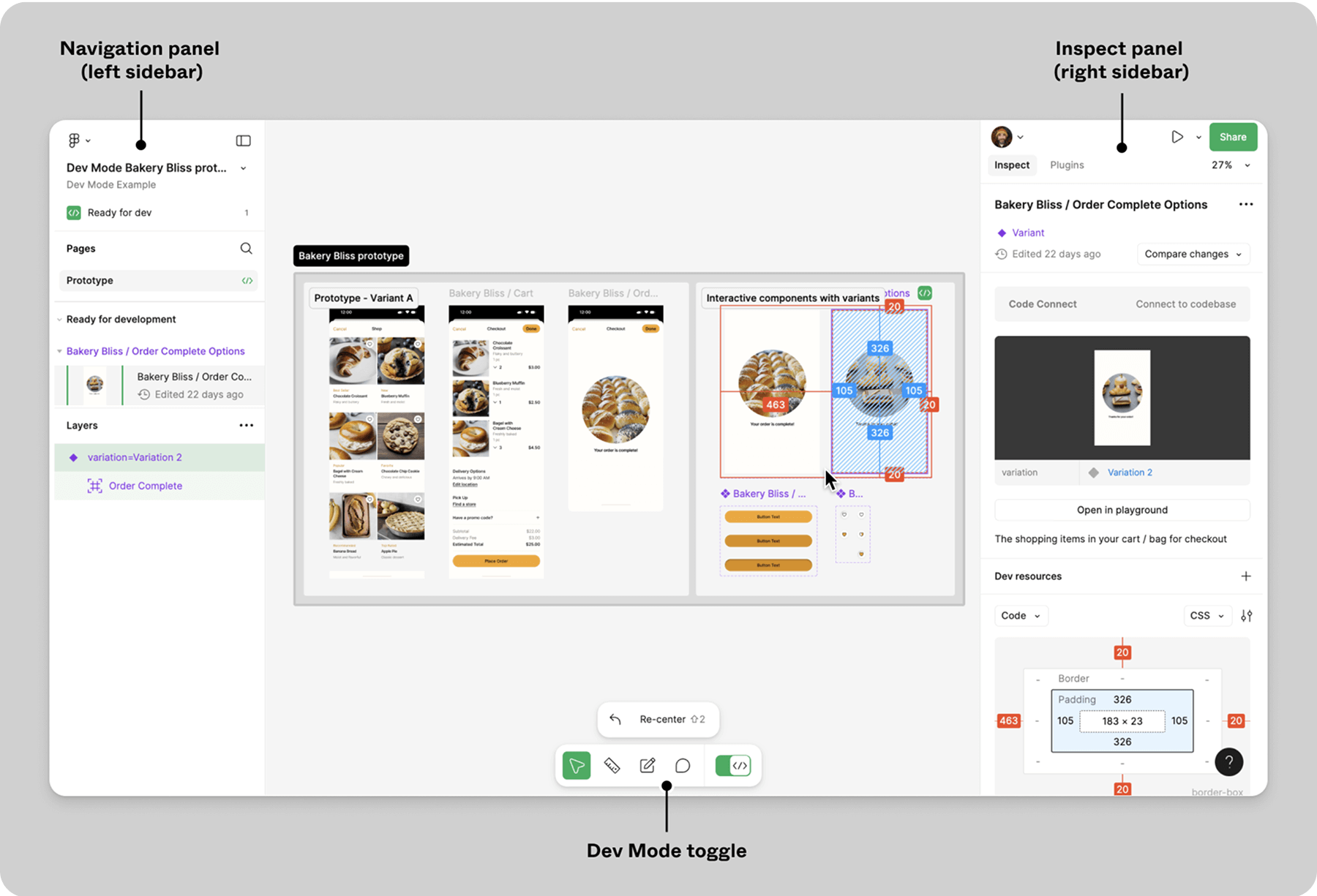
(1) Interface Introduction
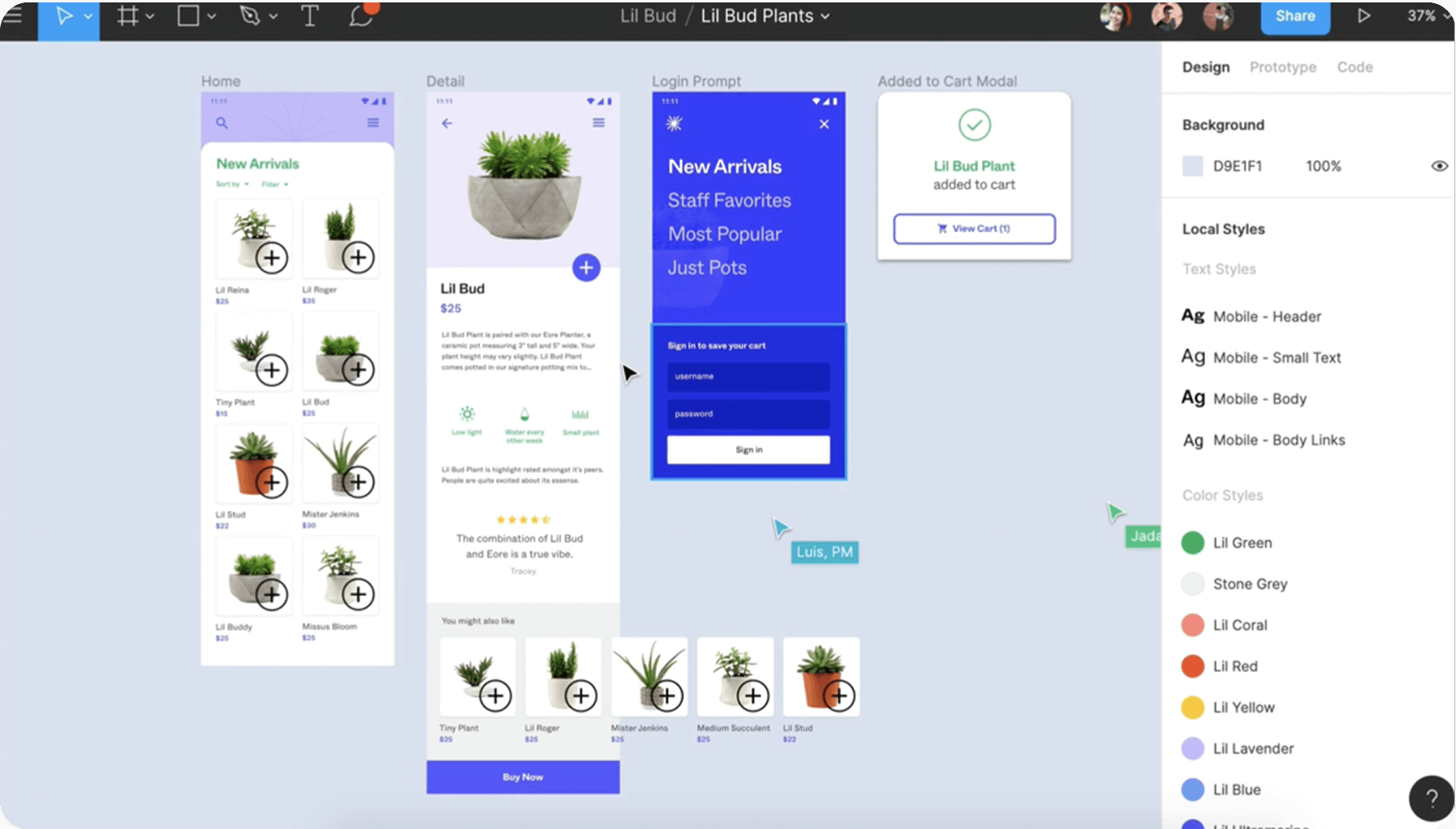
· Top Toolbar: Contains move tool, frame tool, rectangle tool, pen tool, text tool, view tool, and comment tool. These tools are the foundation of design, and familiarity with their functions will help you operate more efficiently
· Layer Navigation Bar: Located on the left side of the interface, supporting switching between layers and components. You can manage the hierarchy of design elements here for subsequent editing and adjustment
· Properties Panel: Located on the right side, used to adjust the properties of design elements, such as color, size, margin, etc. This is the key area for refined design
(2) Basic Operations
· Frame: Frame is the basic unit in Figma used to organize design content. The shortcut for creating a frame is F, or you can create it manually via the frame tool in the toolbar. After selecting a group of elements, right-click and choose Frame Selection to create a frame based on the selected elements
· Text Tool: Click to create a regular text box, drag to create a fixed-range text box. You can adjust font, size, color, and other attributes via the properties panel
· Layout Grid: Helps you quickly build neat interfaces. Find Layout Grid in the properties panel of the frame to set the width, number, and spacing of grids. This is especially important for responsive design
· Layer Management: In the right panel of Figma, there is a "Layers" tab for managing layers. Click the "+" button to add a new layer, drag layers to adjust the order, right-click layers for more operations like copy, delete, rename, etc
· Masks and Boolean Operations: Mask tools can be used via the toolbar or the Use as mask option in the right-click menu. Boolean operations require selecting the shapes to be operated on first, then operating via the top toolbar. These functions help you create complex shapes and layouts
· Component Creation: Select the element to be created as a component, click the "Create component" button to create it. Created components will appear in the "Assets" panel and can be reused at any time
· Prototyping: In the "Prototype" tab, you can set interaction links and transition effects between pages. Select the element to add interaction to, click the "Add interaction" button, then set the target page and transition effect
(3) Figma Shortcuts at a Glance
Figma has many common shortcuts. Mastering them can significantly improve design efficiency:
Selection and Movement
V: Move tool, used to select objects on the canvas. Once selected, objects can be moved by dragging with the mouse
Shift + V: Switch to the direct selection tool for more precise selection and editing of specific parts of an object
Drawing and Shape Creation
R: Rectangle tool, press to draw a rectangle on the canvas
O: Ellipse tool, used to draw ellipses. Hold Shift to draw a perfect circle
P: Pen tool, suitable for creating complex vector graphics by drawing paths and anchor points to precisely outline shapes
Text Editing
T: Text tool, click on the canvas to add a text box and enter text. Set font, size, color, etc., in the right properties panel
Layer Operations
Ctrl + G (Windows) / Command + G (Mac): Group selected objects for easier movement, operation, and management
Ctrl + Shift + G (Windows) / Command + Shift + G (Mac): Ungroup objects
Up Arrow, Down Arrow, Left Arrow, Right Arrow: Quickly select different layers in the "Layers" panel. Hold Alt (Windows) / Option (Mac) and use arrow keys to move the selected layer up or down in the Z-axis to adjust layer order
R: Rectangle tool, press to draw a rectangle on the canvas
Zoom and View Adjustment
Ctrl + + (Windows) / Command + + (Mac): Zoom in on the canvas to view and edit details more clearly
Ctrl + - (Windows) / Command + - (Mac): Zoom out to view the overall layout and design effect
F: Center the selected object in the canvas for quick positioning and viewing
Prototyping
M: Switch to prototype mode, where you can set interaction links and transition effects between pages
Ctrl + Click (Windows) / Command + Click (Mac): In prototype mode, hold this combination and click an object to quickly create an interaction link specifying the target page to jump to
4. Core Differences Between Figma and Sketch
Figma is cloud-based and has excellent real-time team collaboration capabilities. No matter where team members are, as long as the internet connection is normal, they can edit design files simultaneously. For example, a multinational design team can exchange ideas and improve designs together through Figma at any time, greatly improving work efficiency. Its prototyping function is powerful and can easily realize complex interaction effects and animations. At the same time, Figma has a rich Community and plugins, making it convenient for designers to get inspiration and expand functions. However, Figma is highly dependent on the network, and poor network conditions will seriously affect the user experience. In professional design fields such as print design and illustration, its functional depth and precision are not as good as professional software like Sketch
Sketch focuses on interface design, has rich and powerful vector editing tools, is very efficient in processing graphics and typography, and can precisely realize various detailed designs. It has excellent compatibility with the Mac system and operates smoothly, making it very comfortable for designers accustomed to using Mac. But Sketch only supports Mac systems, which greatly limits its user group. Moreover, Sketch's team collaboration function is relatively weak, mainly relying on plugins to achieve basic collaboration, which lags behind Figma's real-time and convenient collaboration mode
If the team needs efficient collaboration and values resource sharing, Figma is more suitable; if focusing on interface design work under Mac systems, Sketch is a good choice
5. Comparison Between Figma and Adobe XD
Figma and Adobe XD are both excellent design tools with their own characteristics. Figma is a browser-based cross-platform tool that supports real-time multi-person collaboration, powerful version control, and convenient file management, especially suitable for team collaboration and cross-platform design scenarios. However, Figma is relatively weak in local storage. Once cloud data is lost or damaged, data recovery may be difficult. In addition, Figma may have slight differences in the performance of certain specific functions across platforms, resulting in inconsistent operating experiences on different operating systems
Adobe XD is a product of Adobe and is highly integrated with other Adobe software. For example, it can seamlessly import images processed by Photoshop and vector graphics drawn by Illustrator, making it convenient for designers to switch between different software. Its design and prototyping functions are rich, providing a large number of interaction presets and transition effects to quickly create high-fidelity prototypes. However, its learning cost is relatively high, and novices need time to master many functions. Adobe XD performs well mainly on Windows and Mac systems, and support for some niche operating systems or mobile devices is not perfect. In addition, although Adobe XD's plugin ecosystem is constantly developing, compared to some open-source platforms or platforms focusing on plugin development, there is still room for improvement in the richness and update speed of its plugins
6. In-Depth Comparison Between Prodes and Figma

As the first domestic online integrated prototype design collaboration tool, Prodes has become the preferred Figma Alternative in China. Compared to Figma, which often has unstable access in China due to network restrictions, Prodes servers are deployed domestically and are not subject to any restrictions in network access. In addition to being saved in the cloud, users can also export Prodes source files and save them locally, and re-edit them anytime, anywhere, greatly improving the work efficiency of product managers and designers
Figma currently has no official Chinese version. Whether it is the tool interface, plugins, or help documents, they are all in English, which undoubtedly increases the difficulty for domestic designers to get started. When users encounter problems, they cannot quickly feedback and seek help, and the communication cost is high. In addition, Figma's charging model may cause certain economic pressure for some individuals and small teams, and there are also certain concerns about the security of design assets
In terms of service, Prodes provides perfect Chinese support for product managers and designers. Whether it is function interfaces, help documents, or update introductions, they are all presented in Chinese, greatly lowering the threshold for getting started. Novice designers and non-professionals can easily understand and operate. When users encounter problems, they can quickly provide feedback and get help through Prodes official channels. Prodes provides strong protection for design work. In terms of charging models, Prodes provides free versions for both individual and team users, and the paid version with higher functions is also very cost-effective, very friendly to individuals and teams, and can effectively reduce the economic burden. In terms of design asset security, users do not need to worry about being suddenly restricted from use. Prodes provides more reliable protection for the preservation of design assets
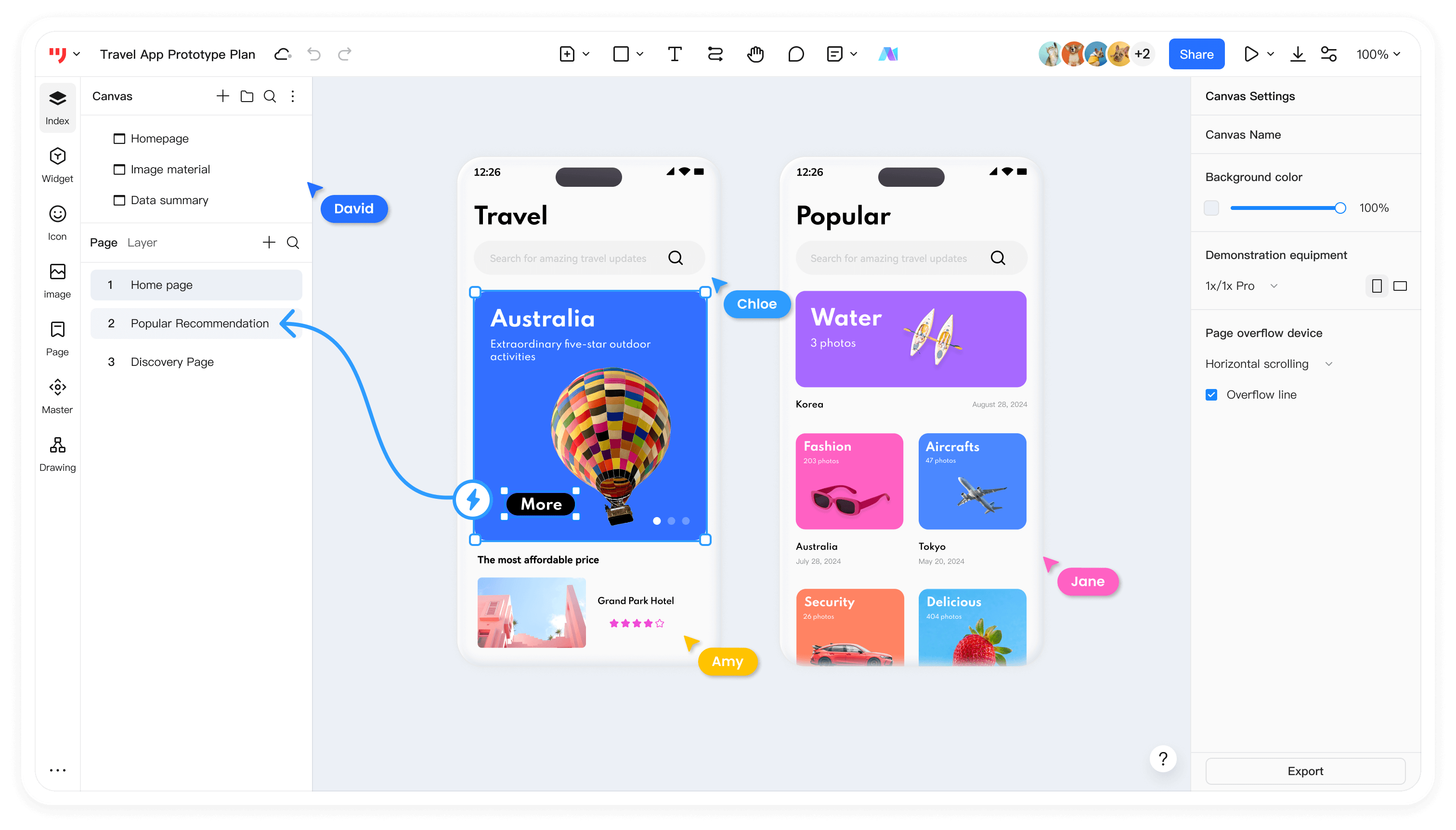
In terms of design functions, Prodes is not inferior. Whether in operation convenience, resource richness, or interaction capabilities and team collaboration, it has incomparable advantages:
(1) Higher Ease of Operation
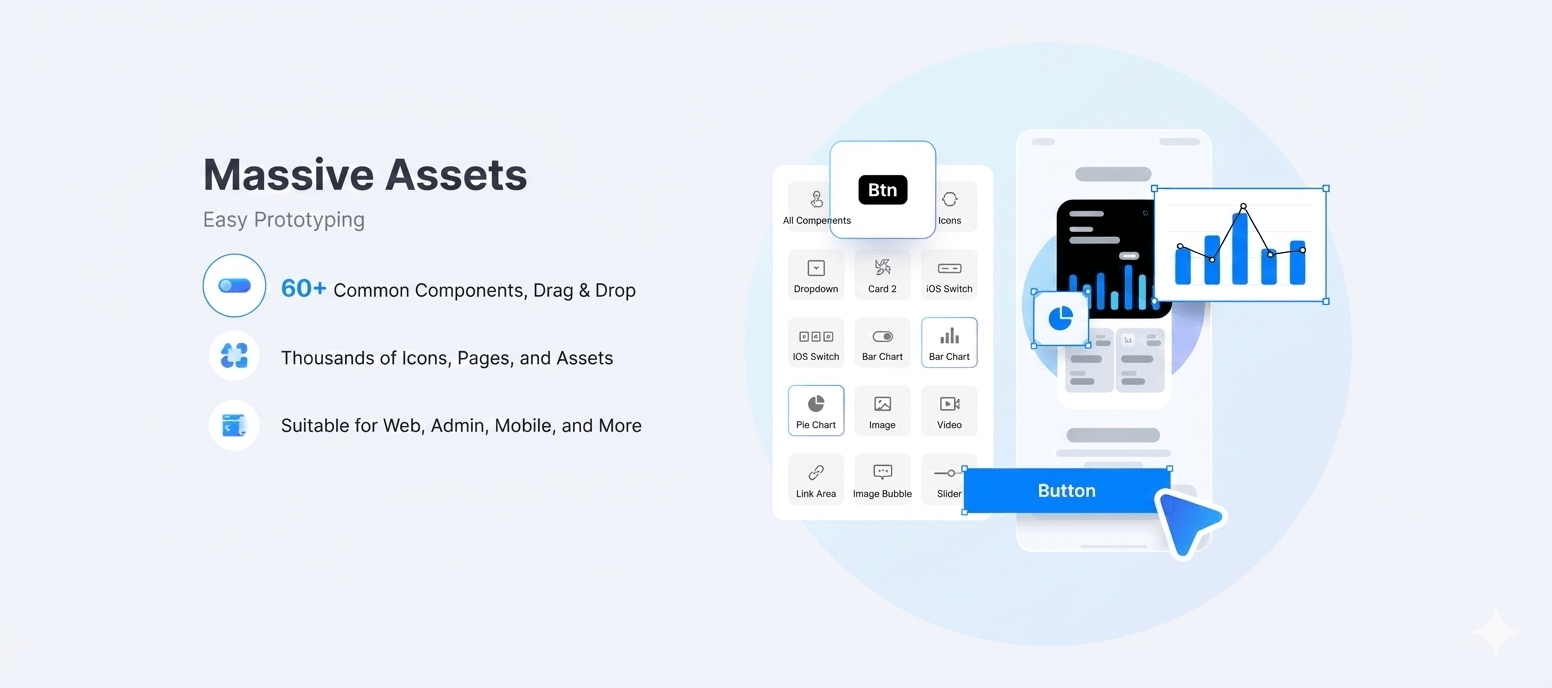
· Low Barrier to Entry: Prodes' operation interface is simple and intuitive. For novice designers and product managers without much design experience, its operation logic is easier to understand and master. For example, when creating a prototype, Prodes' component library is clearly classified. Users can quickly find the required basic components such as buttons and text boxes, and complete the preliminary page construction through simple drag and drop and settings, without spending time getting familiar with complex vector design and layer management operations like in Figma
· Fast Learning Curve: Even users contacting Prodes for the first time can quickly get started and start prototyping through its built-in novice guide and tutorials. In contrast, although Figma is powerful, for some non-professional designers, the richness of its functions may lead to high learning costs
(2) Rich Templates and Community
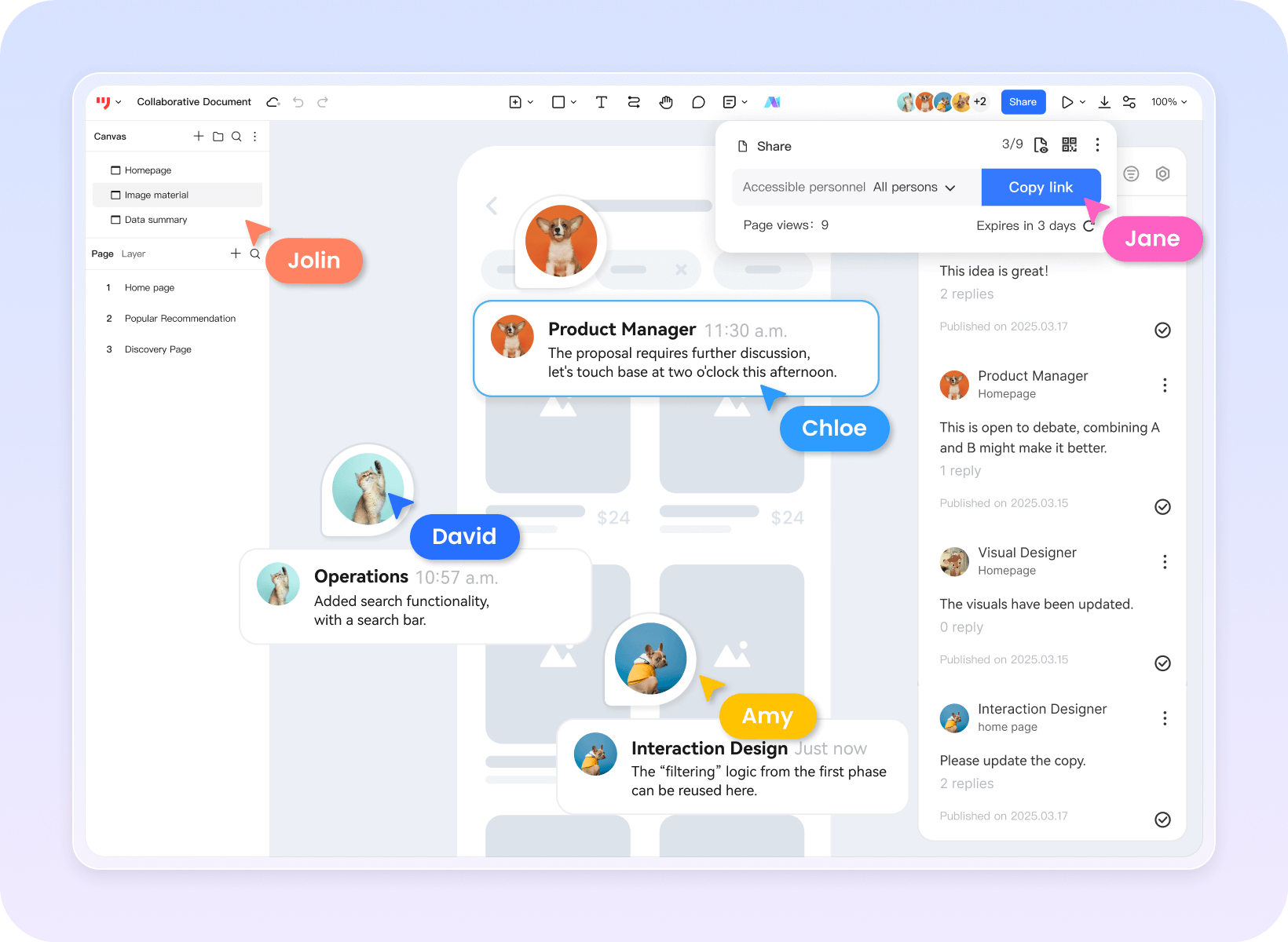
· Efficient Communication and Collaboration: Prodes has carried out targeted optimization in team collaboration. Team members can easily share and comment on projects. For example, in the design process of a project, product managers can share the Prodes prototype with the development team and the design team. Team members can comment and give feedback directly on the prototype, pointing out problems and suggestions for improvement in the design. This efficient communication method helps to improve the promotion efficiency of the project. While Figma may need further optimization in some details of team collaboration, such as adaptability to the communication habits and processes of domestic teams
· Clear Permission Management: Prodes provides clear permission management functions. Team managers can flexibly set different operation permissions according to the roles and responsibilities of members. For example, for some important project files, managers can only grant editing permissions to core members, while other members only have viewing permissions, ensuring the security and confidentiality of the project
(3) Team Collaboration Optimization
· Massive Template Resources: Prodes has a large number of rich templates, covering e-commerce, social networking, education, finance, and other fields. Whether designing the shopping process of an e-commerce APP or the interface prototype of social software, users can find relevant reference templates in Prodes' template library, greatly saving design time and energy. Although Figma also has some template resources, the richness of templates for the domestic market and specific industries may not be as good as Prodes
· Practical Resource Library: Its resource library contains various icons, images, and other materials, which are carefully organized and classified for users to call directly during the design process. For example, when designing an online education APP, users can easily find icons and images related to education from Prodes' resource library to decorate and enrich the prototype interface
(4) Powerful Interaction Design Features
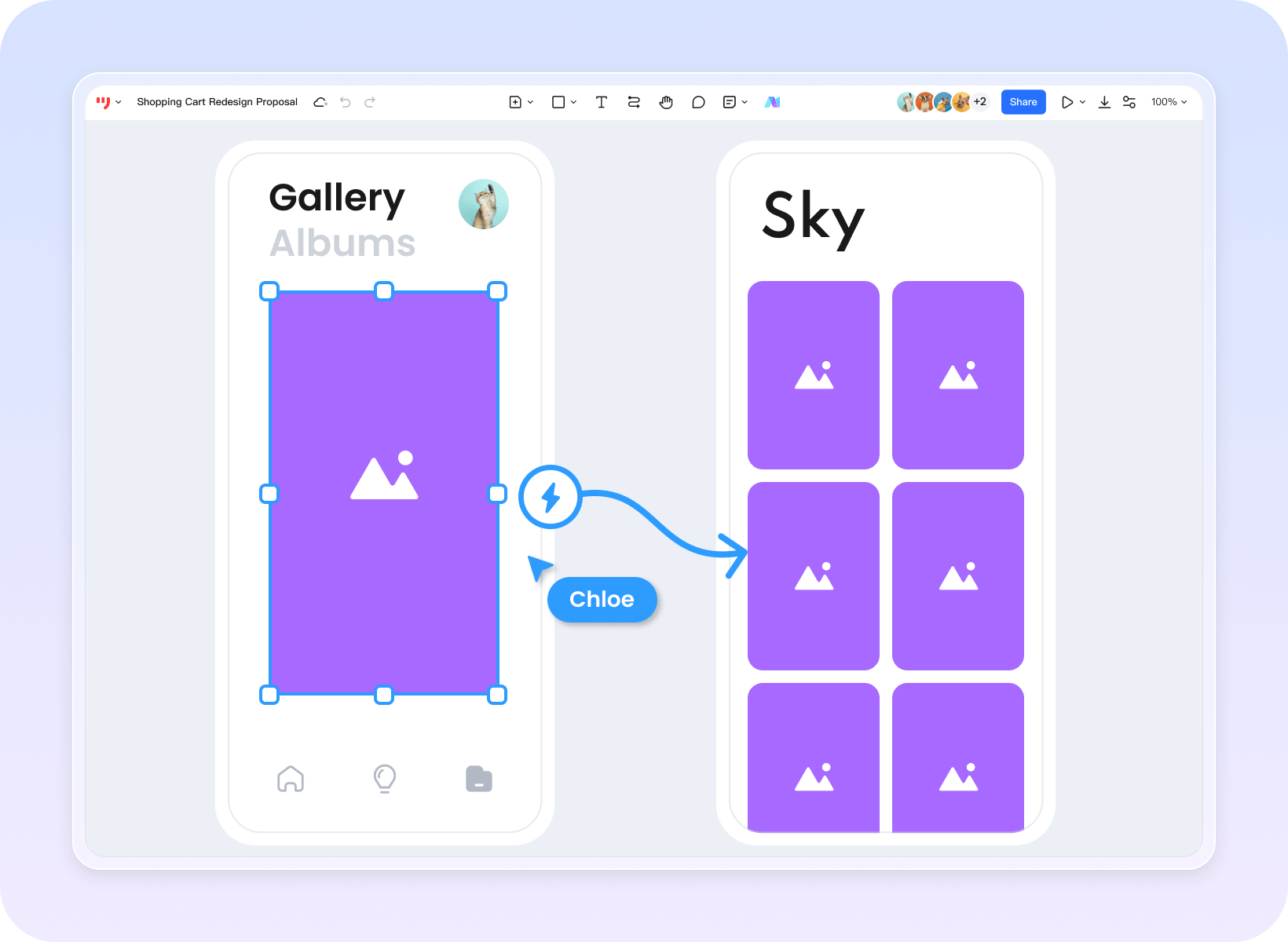
· Rich Interaction Effects: Prodes supports the setting of multiple interaction effects, such as page jumps, display and hiding of elements, animation effects, etc. Through simple settings, users can create interactive prototypes with high fidelity. For example, when designing the shopping cart function of an e-commerce APP, users can set the animation effect when goods are added to the shopping cart, and the page jump interaction after clicking the settlement button, making the prototype more vivid and real
· Convenient Interaction Settings: The operation steps for interaction settings in Prodes are relatively simple. Users do not need complex programming knowledge. They can easily complete the setting of various interaction effects through the visual operation interface. This is a very practical function for some designers and product managers without programming backgrounds
As a pioneer in the field of online design tools, Figma indeed has profound accumulation in product technology and design resources. However, we must not underestimate the exploratory spirit and unremitting efforts of the Chinese team. Like Prodes, every iteration upgrade and function expansion closely revolves around the needs of domestic users. The product perfection and excellent service capabilities displayed today are strong proofs
Every step of Prodes' growth is inseparable from the support of the vast number of users. In the development history of Prodes, almost every optimization of functions condenses the wisdom and feedback of users. In the official update record, the names of users witness their deep "co-creation" with Prodes. From the initial version to the mature product today, Prodes has always walked hand in hand with users to jointly create a design tool that better fits their needs
So, if you are looking for a design tool that understands you better and is more suitable for the domestic usage environment, why not choose Prodes. I believe that with the joint efforts of users and the Prodes team, it will continue to break through and bring more surprises to the design field