
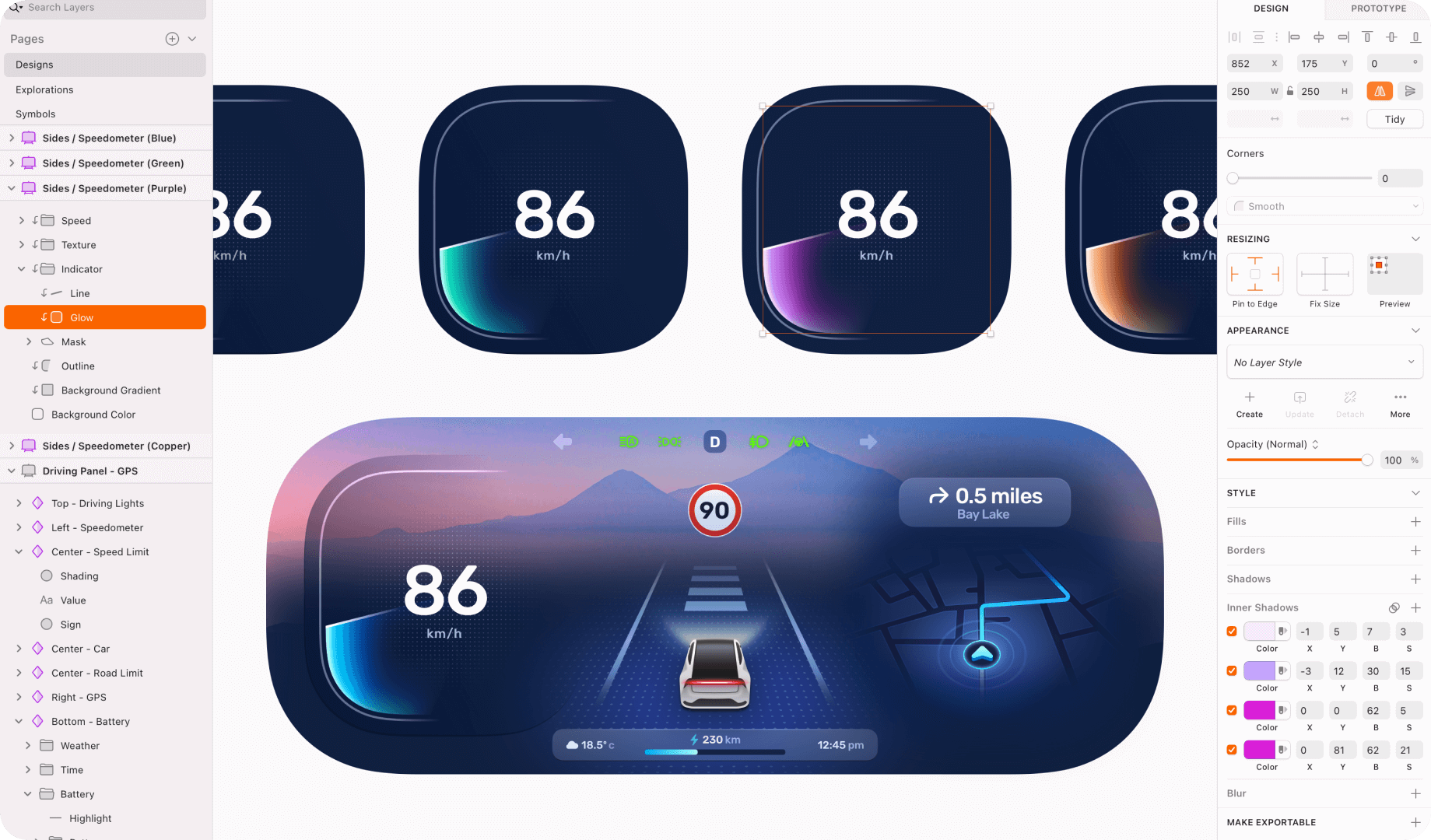
1. What is Sketch
Sketch is a professional vector graphics editing and interface design tool, mainly for UI/UX designers, web designers, and other professionals engaged in digital product design. The history of Sketch can be traced back to 2008, when founder Pieter Omvlee developed a vector drawing tool called DrawIt during his university years. In 2010, DrawIt was renamed Sketch and officially released. Sketch quickly emerged in the design world with its lightweight and focus on UI design. In 2012, Sketch won the Apple Design Award, further establishing its position in the field of UI design
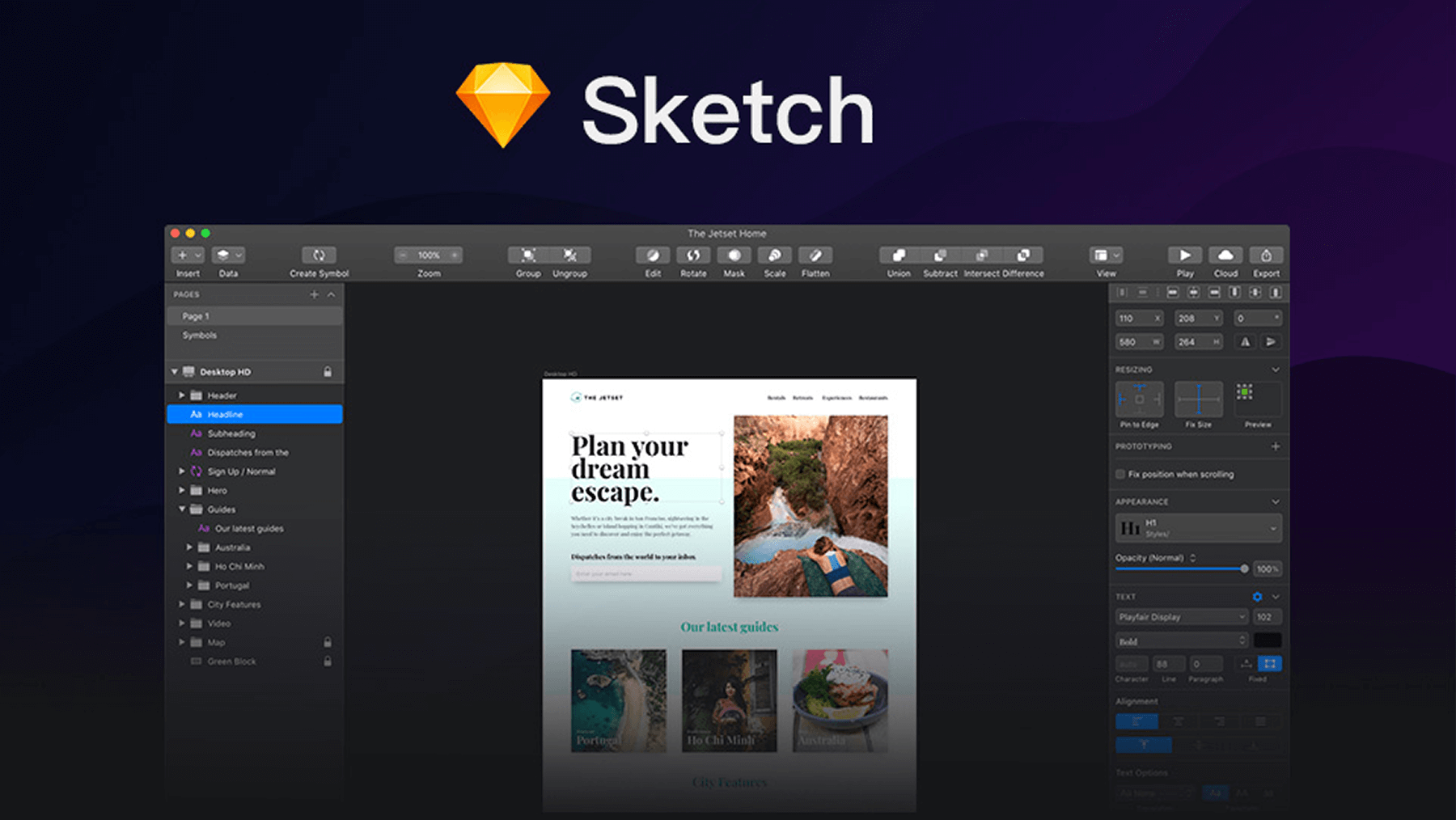
Sketch focuses on providing users with a simple and efficient design environment to help designers quickly create various interface prototypes, icons, illustrations, etc. Unlike traditional design software, Sketch's interface is simple and intuitive, with reasonable functional layout, allowing designers to focus more on creative design. Early versions mainly focused on basic vector graphics drawing and simple interface design functions. With the growth of user needs and technological advancement, Sketch has gradually added powerful functions such as Auto Layout, Shared Styles, and plugin support, making its position in the field of UI design increasingly solid and becoming one of the preferred design tools for many designers
2. Diverse Applications of Sketch in Design
UI Design
Whether it is a mobile app interface or a web interface, Sketch can handle it easily. Designers can use it to create various interface elements, such as buttons, navigation bars, forms, etc, and create beautiful and easy-to-use user interfaces through reasonable layout and design. Taking a social mobile app as an example, designers can use Sketch to accurately draw the message list interface, from the roundness of the avatar to the layout spacing of the text, which can be finely adjusted according to design needs to bring a comfortable visual experience to users
Sketch's interface is simple and intuitive, easy to use, and even novices without much design experience can quickly become familiar with and master it. It provides rich design functions and resources, covering the entire process from low-fidelity wireframes to high-fidelity prototyping, meeting the needs of different design stages. At the same time, Sketch's powerful team collaboration function allows team members to share and edit design files in real time, greatly improving work efficiency
Icon Design
Sketch's powerful vector graphics editing capabilities make it an ideal tool for icon design. Designers can accurately draw various shapes and details to create high-quality icons, whether flat or skeuomorphic. For example, when designing an icon for a music player application, designers can use Sketch's shape tools and path editing functions to delicately display the shape of musical notes in the form of vector graphics, and make the icon more vivid and textured visually by adjusting details such as line thickness and color gradients
Prototyping
Although Sketch's prototyping function is relatively weak compared to some professional prototyping tools, designers can also create simple interactive prototypes through its built-in interactive animation functions and plugin extensions to display jumps between interfaces and basic interactive effects. For example, designers can achieve page switching after clicking a button or fading in and out of elements through simple settings to initially display the interaction flow of the product
3. From Beginner to Pro: Mastering Key Features of Sketch
Vector Graphics Editing
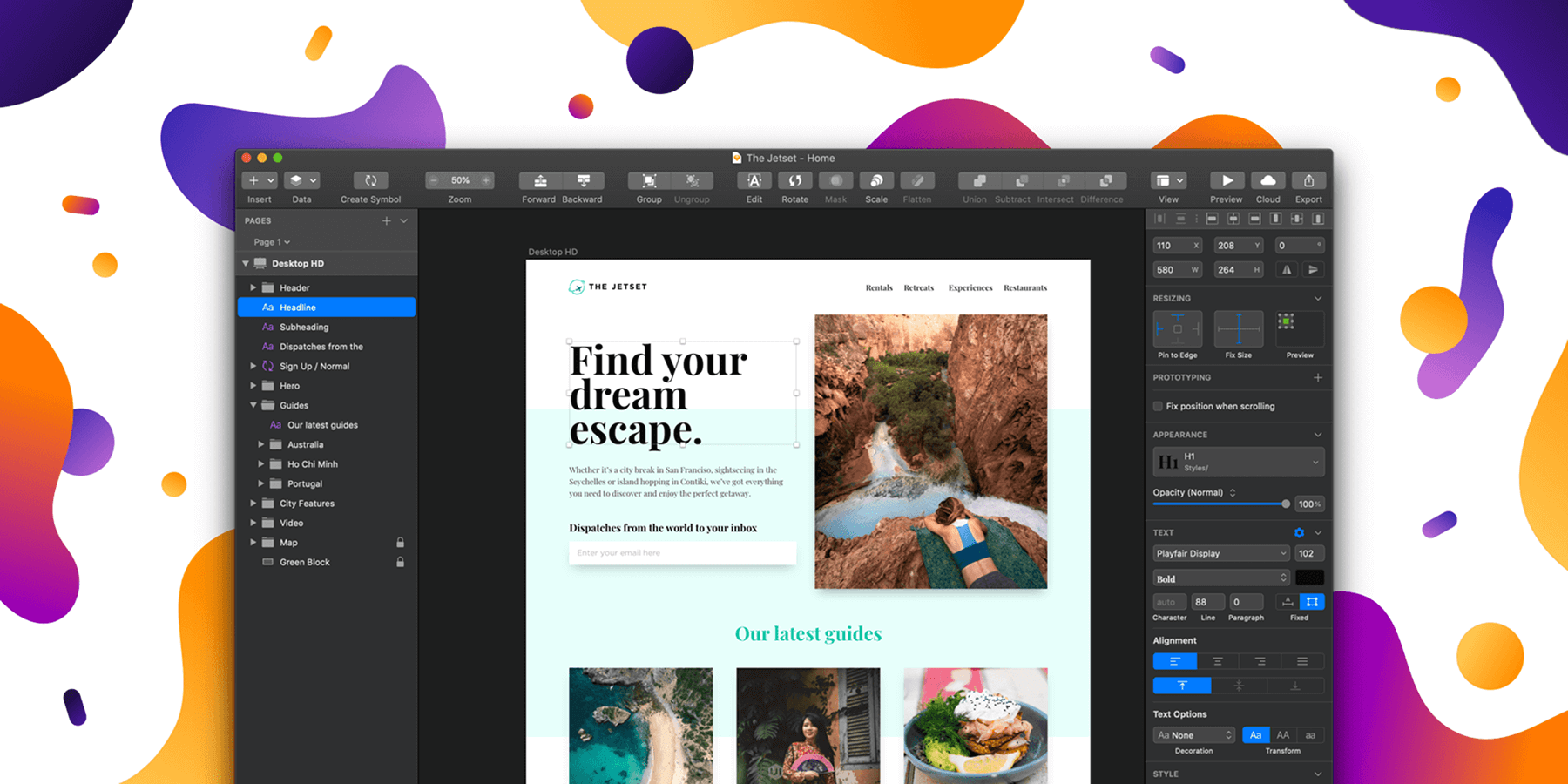
Sketch provides rich vector graphics drawing tools, such as shape tools, pen tools, etc. Designers can easily create and edit various complex vector graphics without distortion during scaling. Using shape tools, designers can quickly draw basic shapes such as rectangles, circles, and polygons, while pen tools give designers the ability to freely draw arbitrary shape paths. By adjusting anchor points and curves, complex graphics can be drawn. Whether it is exquisite icons or delicate illustration elements, they can be easily completed
Auto Layout
This function greatly improves the efficiency of interface design. Designers only need to set the layout rules between elements, and Sketch will automatically adjust the position and size of elements according to content changes to ensure that the interface maintains a good layout effect under different screen sizes. When designing an e-commerce product details page containing multiple elements, designers can set the layout relationship of elements such as images, text, buttons, etc. When the text content increases or the image size changes, Sketch will automatically adjust the position and size of each element to maintain the overall beauty and coordination of the page
Shared Styles
Through the shared style function, designers can apply a set of styles (such as color, font, shadow, etc) to multiple elements. When the style needs to be modified, it only needs to be modified in one place, and all elements applying the style will be automatically updated, greatly saving design time and energy. For example, in the interface design of a large project, set the styles of all buttons to shared styles. When the color and corner radius of the buttons need to be adjusted, just modify them in the shared style settings, and the styles of all buttons will be updated synchronously, avoiding the tedious work of modifying them one by one
Plugin Support
Sketch has a huge plugin ecosystem. Designers can extend the software's functions by installing various plugins, such as importing and exporting files in specific formats, generating icon fonts, filling data, etc, to meet different design needs. For example, designers can install plugins to quickly export Sketch design drafts into code formats suitable for different platforms, or use data filling plugins to quickly fill simulated data for elements such as tables and lists in design drafts, improving the authenticity and completeness of the design
4. From Design to Collaboration: A Collection of Sketch Advantages
Focused on UI Design
Compared with some comprehensive but relatively complex design software, Sketch focuses on the field of UI design. Its functions and operations are optimized around the process and needs of UI design, enabling designers to complete design work more efficiently. In Sketch, from the various UI design size templates preset when creating a new document to the various tools and functions specifically designed for interface elements, it provides designers with a convenient design experience, allowing designers to focus on creativity and design details without having to look for required tools in complicated functions
Simple and Easy-to-use Interface
Sketch's interface is simple and intuitive, and new users can get started quickly. Its operation logic is clear, and the positions of various tools and functions are reasonable. Designers can easily find the required functions and improve design efficiency. For example, Sketch's toolbar and menu bar layout is simple and clear, and commonly used drawing tools, selection tools, etc. are in conspicuous positions. Even designers using it for the first time can quickly become familiar with it and start design work
Efficient Team Collaboration
Sketch supports team collaboration. Designers can collaborate with team members in real time by sharing documents. Team members can view and edit design drafts at the same time, facilitate communication and feedback, and improve project promotion efficiency. In the process of team collaboration, team members can see the operations of other members in real time, put forward modification opinions and suggestions in time, and jointly improve the design draft, avoiding problems caused by poor communication and inconsistent versions
5. Beginner's Guide to Sketch
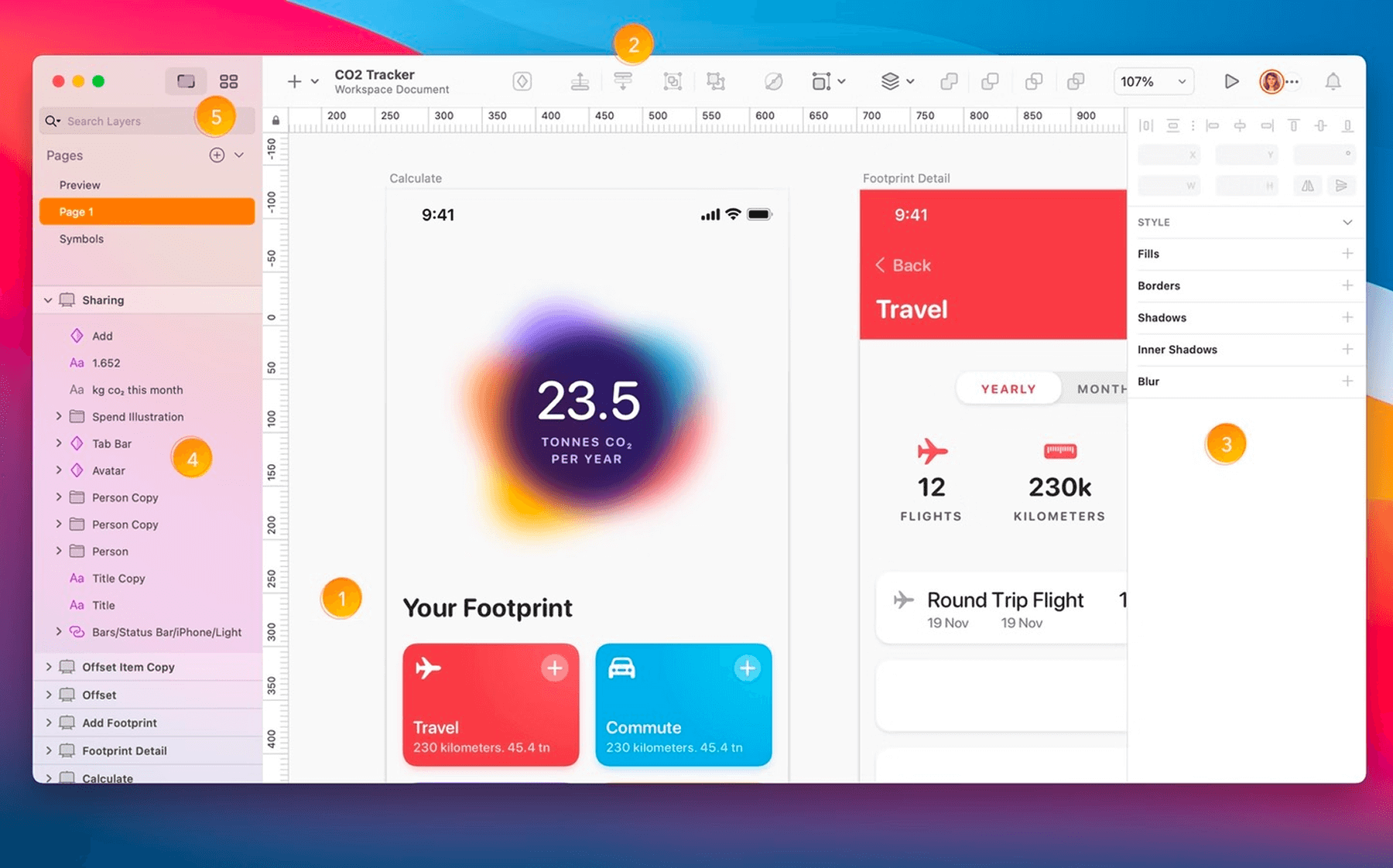
(1) Understanding the Interface
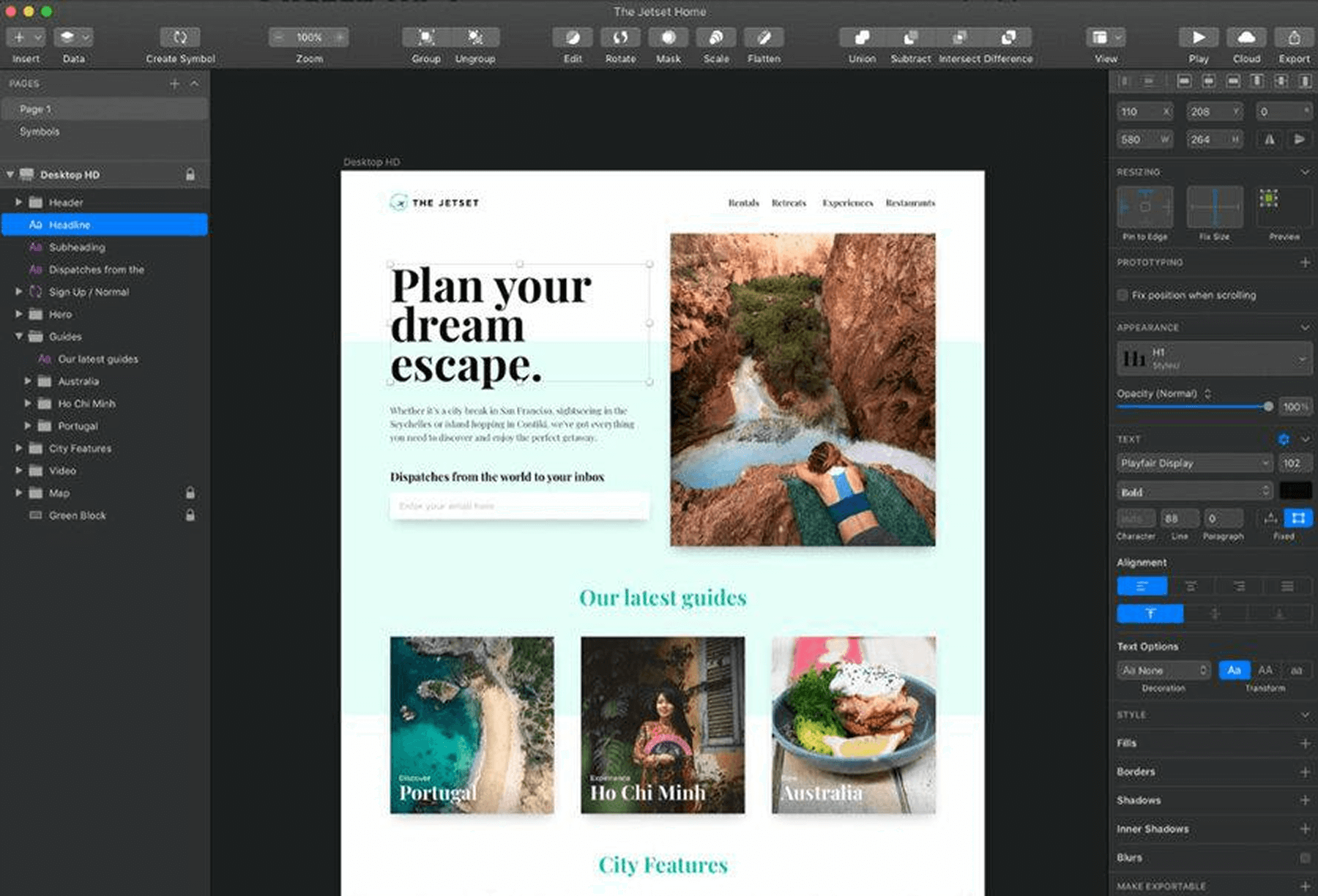
Canvas: The area used to create and edit designs
Toolbar: Provides various drawing tools and function options, such as Selection Tool, Shape Tools, Text Tool, etc
Layers Panel: Displays the hierarchical relationship of all design elements for easy management
Properties Panel: Used to adjust the properties of the selected element, such as color, style, size, etc
(2) Basic Operations
New File: Launch Sketch, click "File" > "New" to create a new file, or use the shortcut Command+N to create one
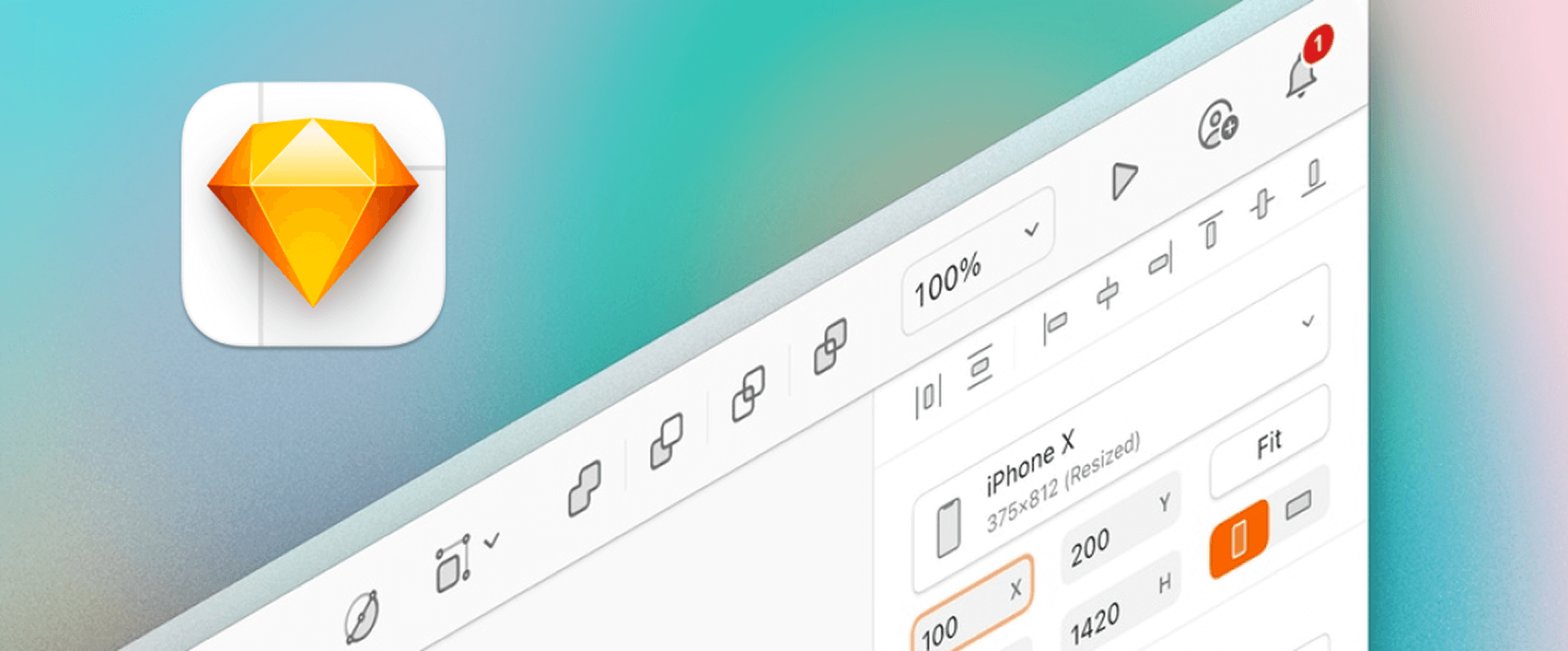
New Artboard: Select the "Artboard" tool in the left toolbar, then click and drag on the canvas to create a new artboard. You can modify the artboard size in the right properties panel
Draw Shapes: Select the "Rectangle" tool, click and drag the mouse to draw a rectangle. You can also select other shape tools such as ellipses and polygons for drawing. Hold down the Shift key to draw a square or circle, and hold down the Option key to start drawing from the center
Add Text: Select the "Text" tool, click on the canvas and enter content, and adjust the font, font size, color, etc. in the right properties panel
Import Image: Click "File" > "Import", select the image file to be imported, or drag and drop the image directly onto the canvas
(3) Symbols and Components
Symbols are one of Sketch's powerful features, allowing the creation of reusable design elements (such as buttons). When modifying a symbol, all instances are automatically updated
Create Symbol: Select one or more layers, right-click and select "Create Symbol" to create a symbol. Symbols can be used repeatedly in multiple artboards. Modify the symbol, and all instances will be automatically updated
Use Symbol: Drag the symbol from the symbol library to the artboard to reuse the design element
(4) Styles and Shared Styles
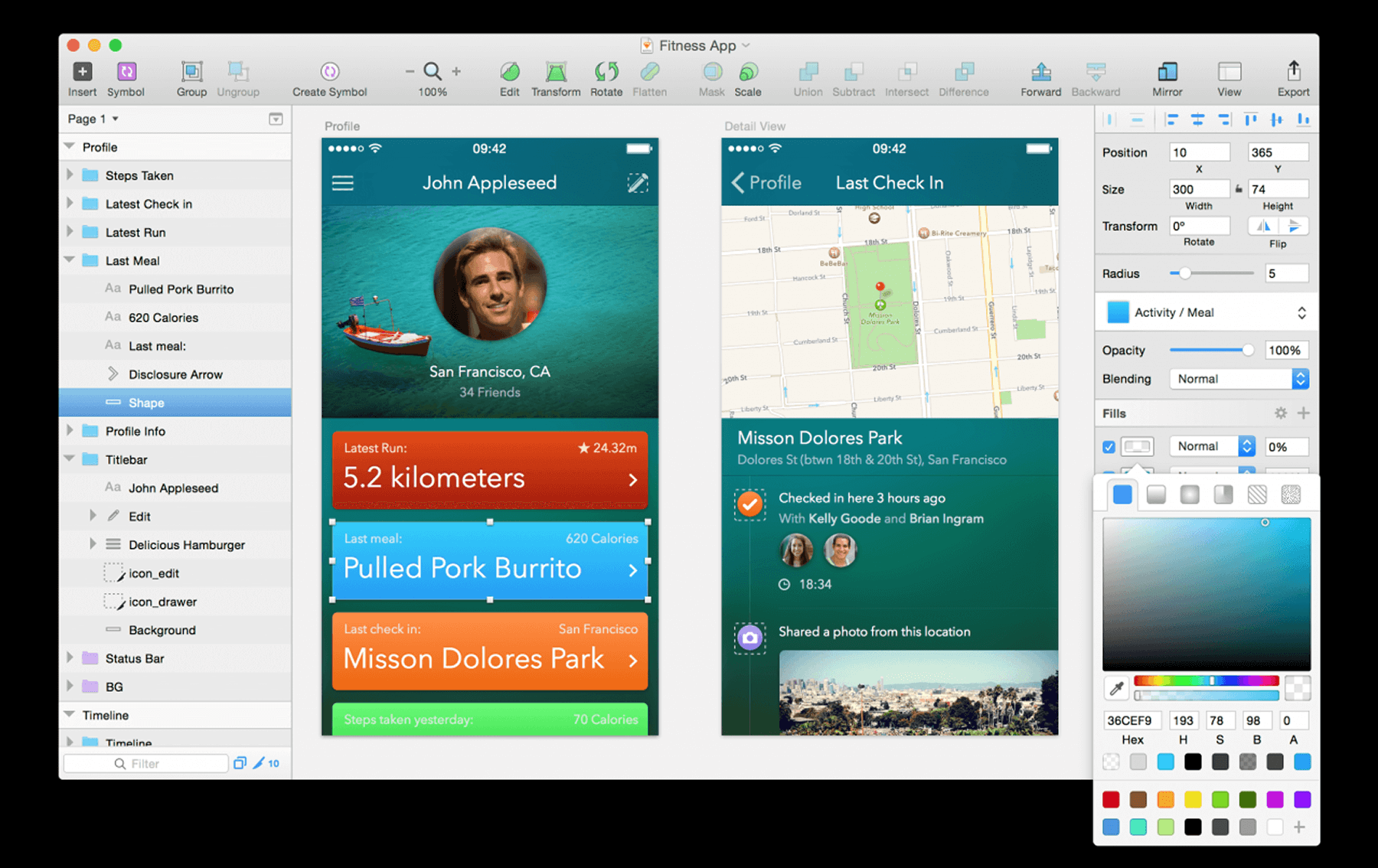
Create Style: Adjust the style of the layer in the right properties panel, such as fill, border and shadow, etc., click the small arrow next to the style, and select "Create Shared Style"
Apply Style: Select the element to which the style needs to be applied, and click the style to be applied in the shared style list
6. In-Depth Analysis: Sketch Limitations
Platform Limitations
Sketch currently only supports Mac systems. For designers using Windows systems, this software cannot be used, which limits its user base to a certain extent. In some enterprises or teams, there may be some designers using Windows systems for work, which hinders the promotion and use of Sketch in these environments and cannot meet the design needs of all members
Weak Prototyping Capabilities
Although Sketch can create simple interactive prototypes, compared with professional prototyping tools, its prototyping functions are not powerful enough, and there are certain limitations in handling complex interactive effects and dynamic displays. For example, for some scenarios that require complex animation effects, multi-page interaction logic, and hardware device interaction simulation, Sketch's prototyping function appears powerless and cannot meet designers' needs for high-fidelity display of product prototypes
Learning Curve
For novices with no design basis at all, some professional functions and operations of Sketch may take some learning time to master. For example, some advanced techniques of vector graphics editing in Sketch, such as precise path editing and Boolean operations of shapes, may take a certain amount of time for novices to learn and practice before they can be used proficiently, which increases the difficulty for novices to get started to a certain extent
7. Free Usage Strategy: Improving Design Efficiency at Low Cost
Sketch's pricing is divided into two models. One is the subscription model. The monthly fee for individual users is $12, and the fee for enterprise users per editor is $22/month. The second is the one-time purchase model, which is currently only available to individual users. Users only need to pay once to use the current version of the software permanently (updates do not follow version updates). Sketch will launch updated versions from time to time, and users can choose whether to purchase the upgraded version according to their needs
Whether it is a subscription model or a one-time payment model, for some small design teams or individual users, it may bring high long-term costs. At the same time, users cannot obtain subsequent version updates without paying, which may lead to inconsistent Sketch versions used by different users, thereby affecting team collaboration efficiency. For example, high-version files may not open properly in low versions, which will cause inconvenience to team collaboration. If you are looking for a cost-effective prototyping tool that is suitable for long-term use and can use the latest functions of the product without version restrictions, you may wish to learn about Prodes, click to use Prodes for free immediately.
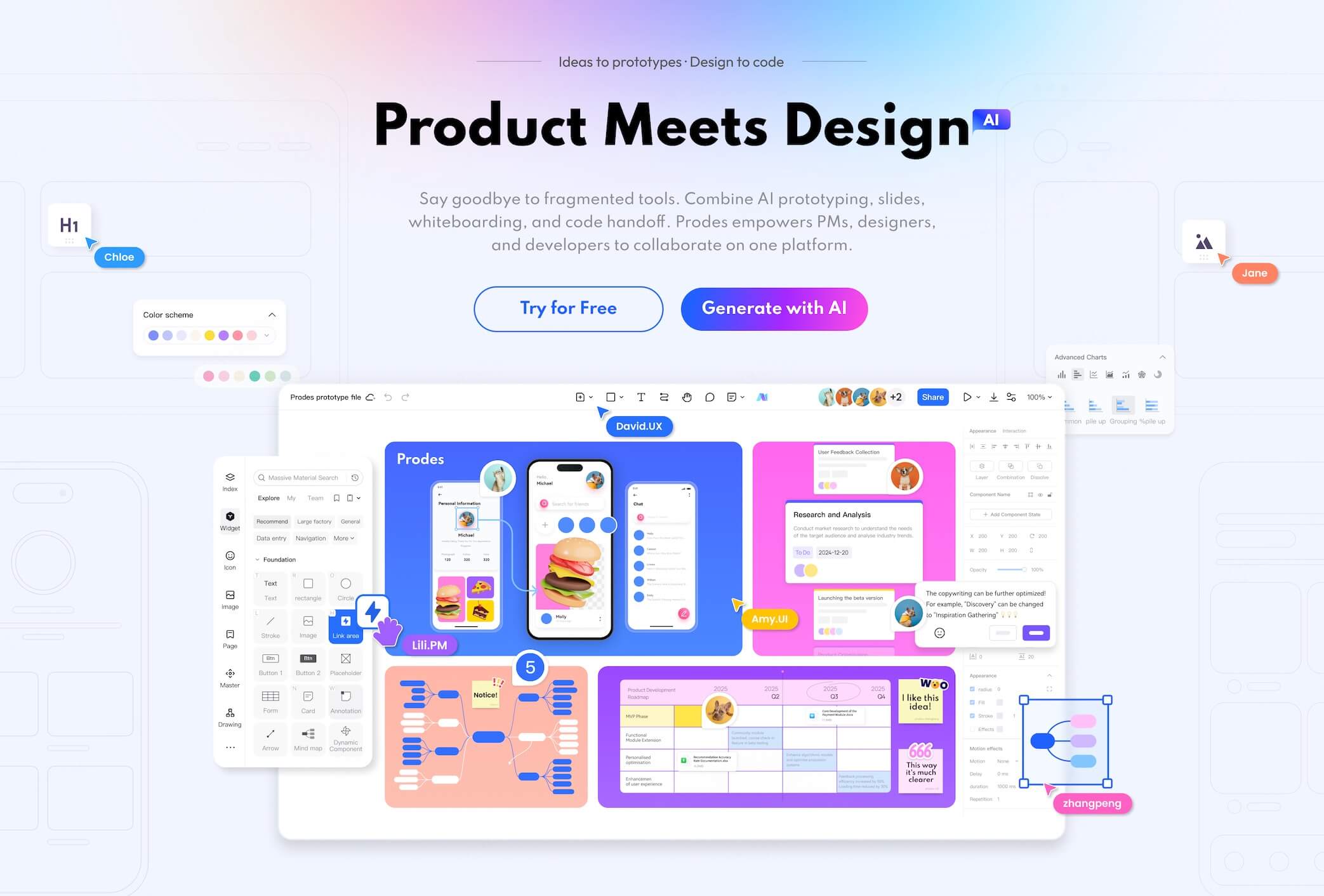
As a preferred design tool for Sketch Alternative, Prodes has significant price advantages, especially for individual users and teams with limited budgets. The free version provided by Prodes can meet the basic design needs of individual users and small-scale teams. In the paid version, Prodes also provides team and enterprise versions for users with different budgets, suitable for teams of all sizes. Prodes can not only be used for free, but also supports multi-person real-time collaboration, cloud storage and a rich template library. The balance between function and price makes it a more cost-effective choice. Most importantly, Prodes does not limit users' devices. Users do not need to download and install, they can use it online. All files are saved in the cloud in real time. Prodes desktop client supports Windows, Mac, and Linux downloads. Users do not need to worry about device or system problems. Moreover, it also has irreplaceable advantages in prototyping capabilities, resource templates, and team online collaboration:
(1) Powerful Online Prototyping Capabilities
· Rich Interaction Design Capabilities: Prodes has powerful prototype interaction design capabilities, and the operation is simple. You can add interactive effects by dragging and dropping. From simple page jumps, display and hiding of elements, to complex interactive animations such as 3D flip, elastic animation, parallax scrolling, etc., designers can easily find corresponding effects in Prodes. Taking the product details page of an e-commerce APP as an example, designers can use Prodes' interaction design capabilities to add carousel switching effects to product images, set interaction for clicking images to zoom in and view, and add fade-in and fade-out animation effects to product introduction text, making the entire page display more vivid and interesting, and improving user experience. This allows designers to easily create high-fidelity prototypes and more realistically simulate actual usage scenarios of products. Whether it is for internal demonstration or communication with customers, the other party can feel the charm of the product more intuitively
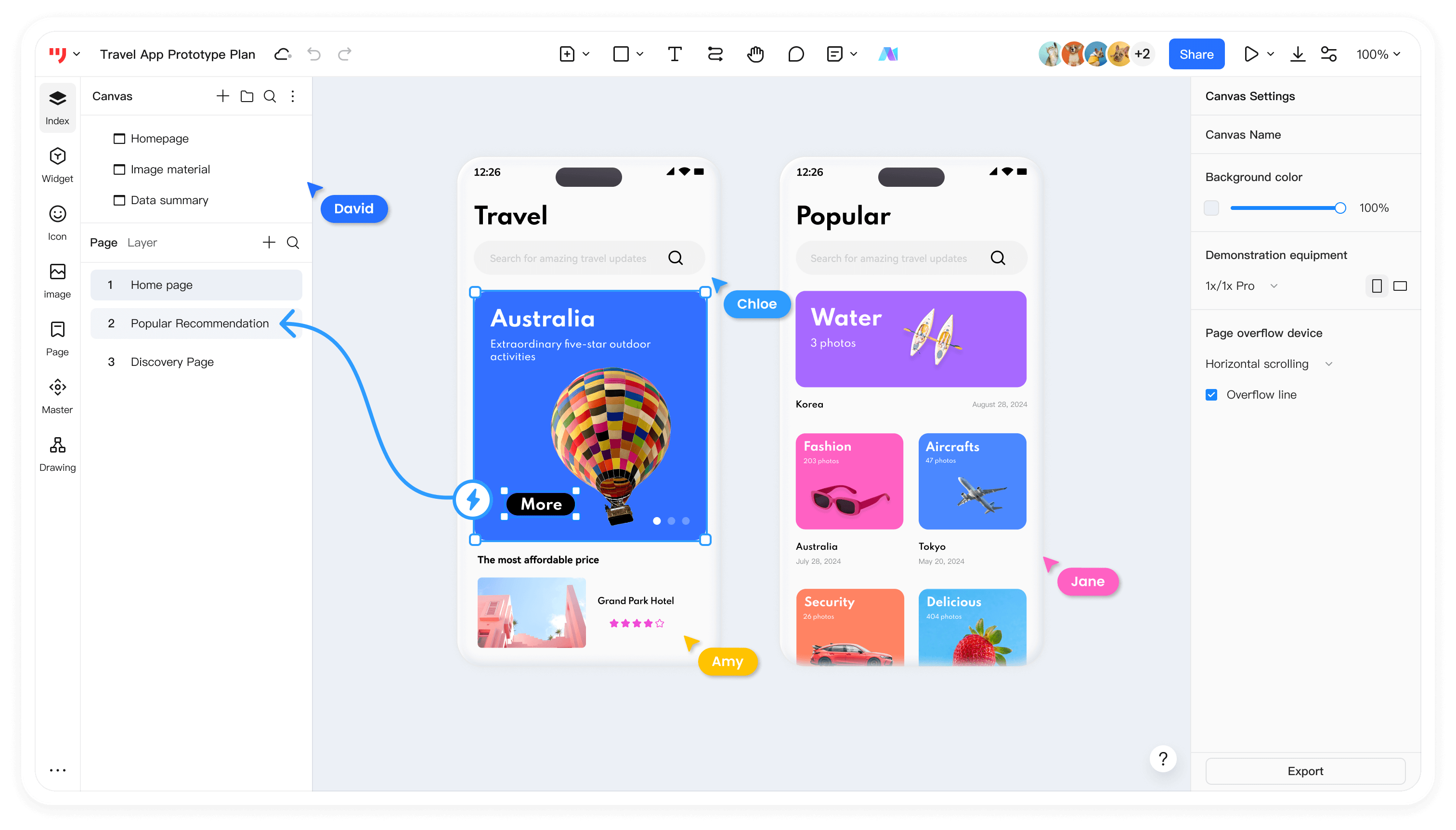
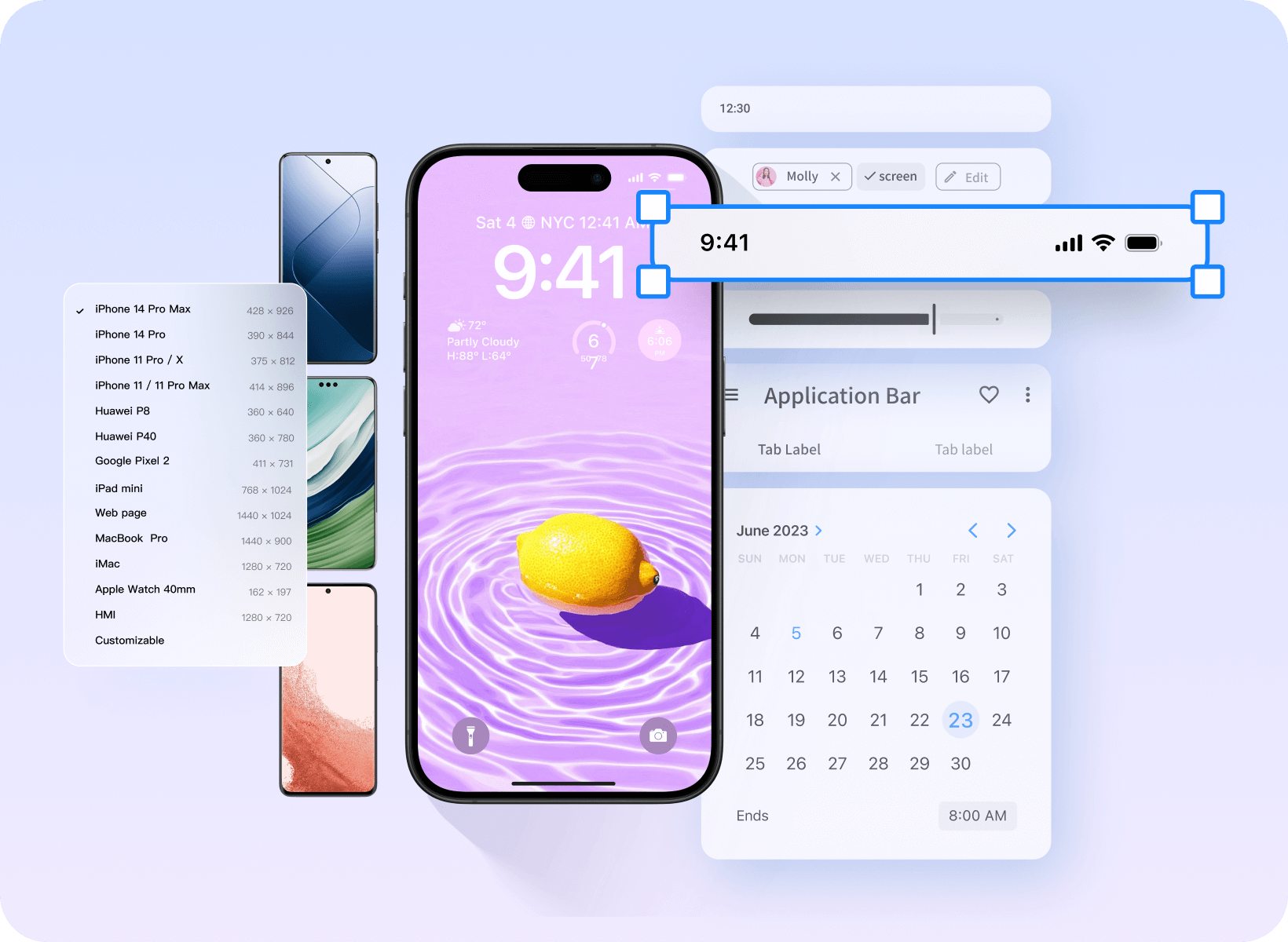
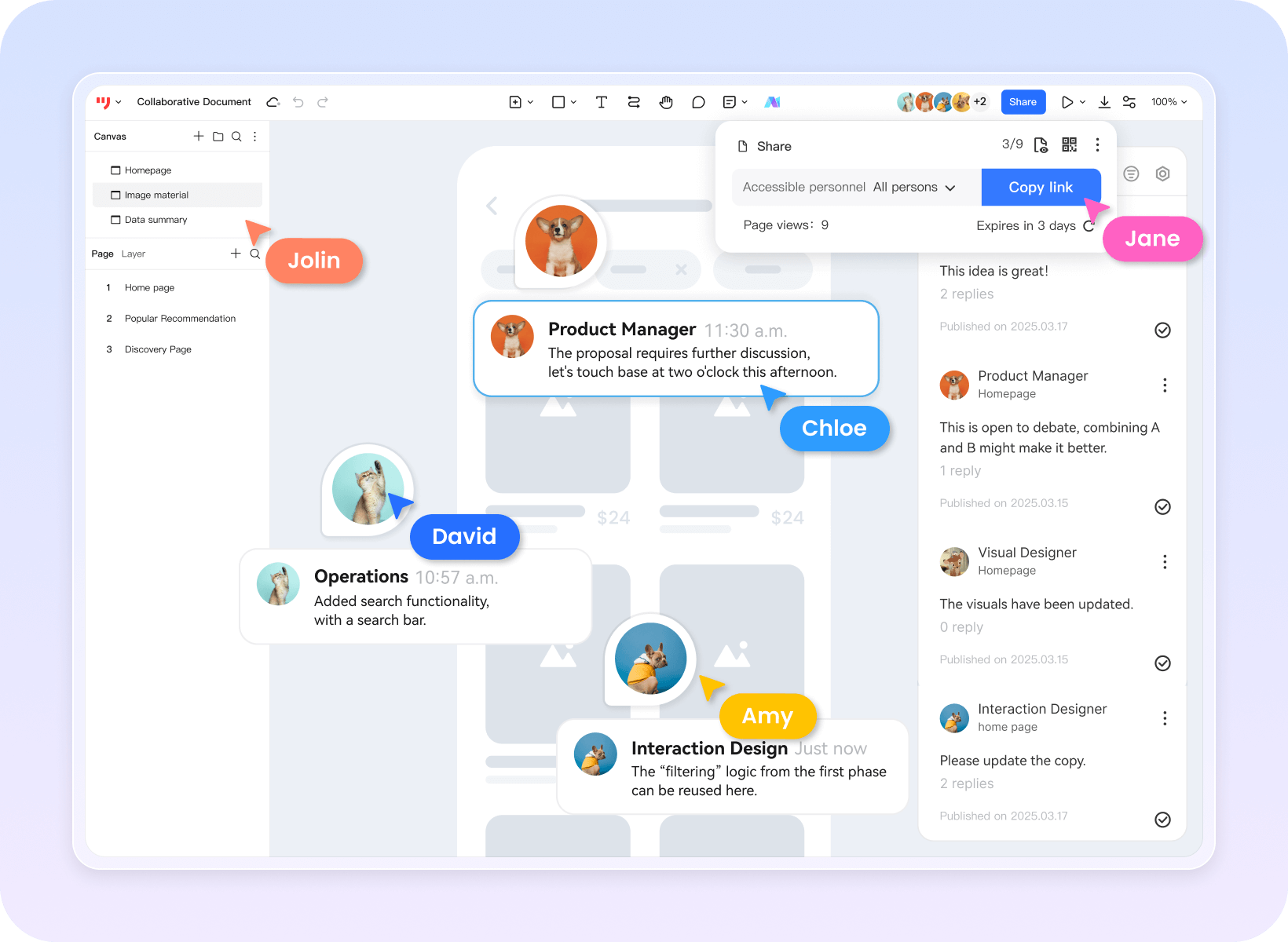
· Real-time Editing and Device Preview: Prodes's online prototyping supports multi-person real-time editing and preview functions. Product managers, designers, and development engineers can open, edit, preview, and comment on prototype files on different devices at any time during the design collaboration process. Prodes also supports advanced link sharing functions, which can selectively choose prototype pages to be shared, and restrict preview permissions for shared objects, ensuring the security of file projects and greatly improving design efficiency. Prodes supports device preview of different models such as PC, mobile, and Pad, and perfectly demonstrates the running effect of prototypes in more than 40 device sizes
(2) Massive High-Quality Design Resources
· Multi-industry Template Coverage: Prodes has massive template resources, covering almost all mainstream industries, such as e-commerce, social networking, finance, education, medical care, etc. These templates are carefully designed and produced by professional product managers and designers, with high design standards and practicality. Taking the e-commerce industry as an example, Prodes provides multiple types of e-commerce templates, including comprehensive e-commerce platform homepages, product details pages, shopping cart pages, personal centers, etc. Each template has undergone careful layout and design, with coordinated color matching and reasonable element layout. Designers can directly use these templates as the basis for the project, modify and customize them according to their own needs, greatly saving design time and energy. For some time-critical projects, or novice designers, these templates are undoubtedly very valuable resources
· Rich Icon and Component Library: In terms of icons and components, Prodes also performs well. Covering various styles and themes, whether it is simple linear icons, cute cartoon icons, or exquisite realistic icons, designers can find them in Prodes's icon library. Moreover, Prodes's icon library also supports search and classification screening functions. Product managers and designers can search by keywords or filter by icon category to quickly find the required icons. In addition, Prodes also provides a rich component library, including buttons, forms, navigation bars, pop-ups and other common interface components. These components are not only beautifully designed, but also have good interactive effects. Designers can directly drag and drop these components onto the design page, combine and adjust them, and quickly build a complete interface
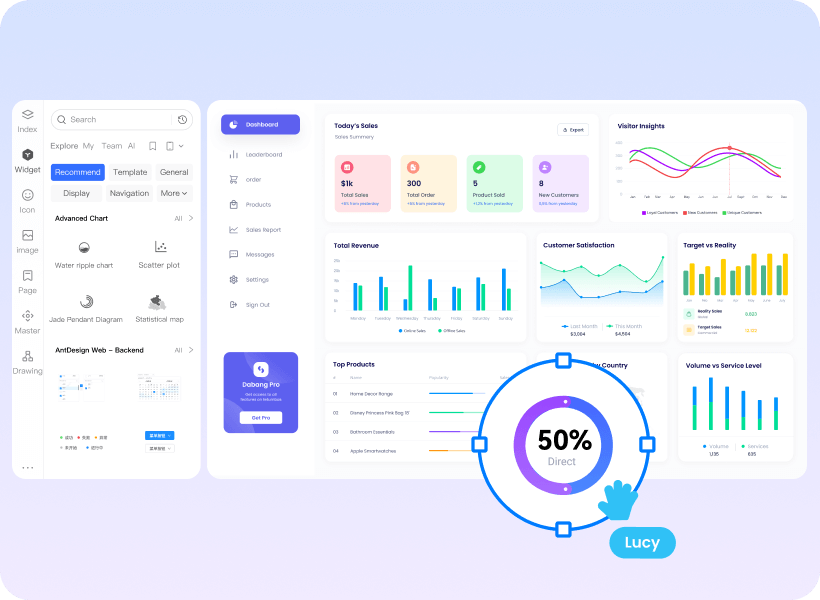
· Real-time Resource Updates and Sharing: Prodes's material resources are constantly updated, and the platform will regularly release new templates, icons and components to meet the changing needs of designers. At the same time, Prodes also supports users to upload materials themselves. Product managers and designers can upload their own high-quality materials to the platform, share them for free or earn income. This mechanism of real-time update and sharing of materials keeps Prodes's material library vibrant and fresh, providing designers with a steady stream of design resources

(3) Excellent Team Collaboration Capabilities
· Multi-player Real-time Collaborative Editing: Prodes supports multiple people to edit the same project online at the same time. Team members can operate on the project at the same time and see each other's modifications and updates in real time. This real-time collaboration method greatly improves the efficiency of team communication and collaboration, and avoids work delays caused by inconsistent versions and untimely communication in traditional collaboration methods
· Detailed Version History: Prodes has a complete version management function, which can automatically record every modification and update of the project and form different versions. Team members can view the historical version of the project at any time, compare the differences between different versions, and restore to a previous version as needed. The version management function is very helpful for project backtracking and review. When there is a problem with the project or adjustments need to be made, team members can find the root cause of the problem or obtain previous design ideas by viewing historical versions
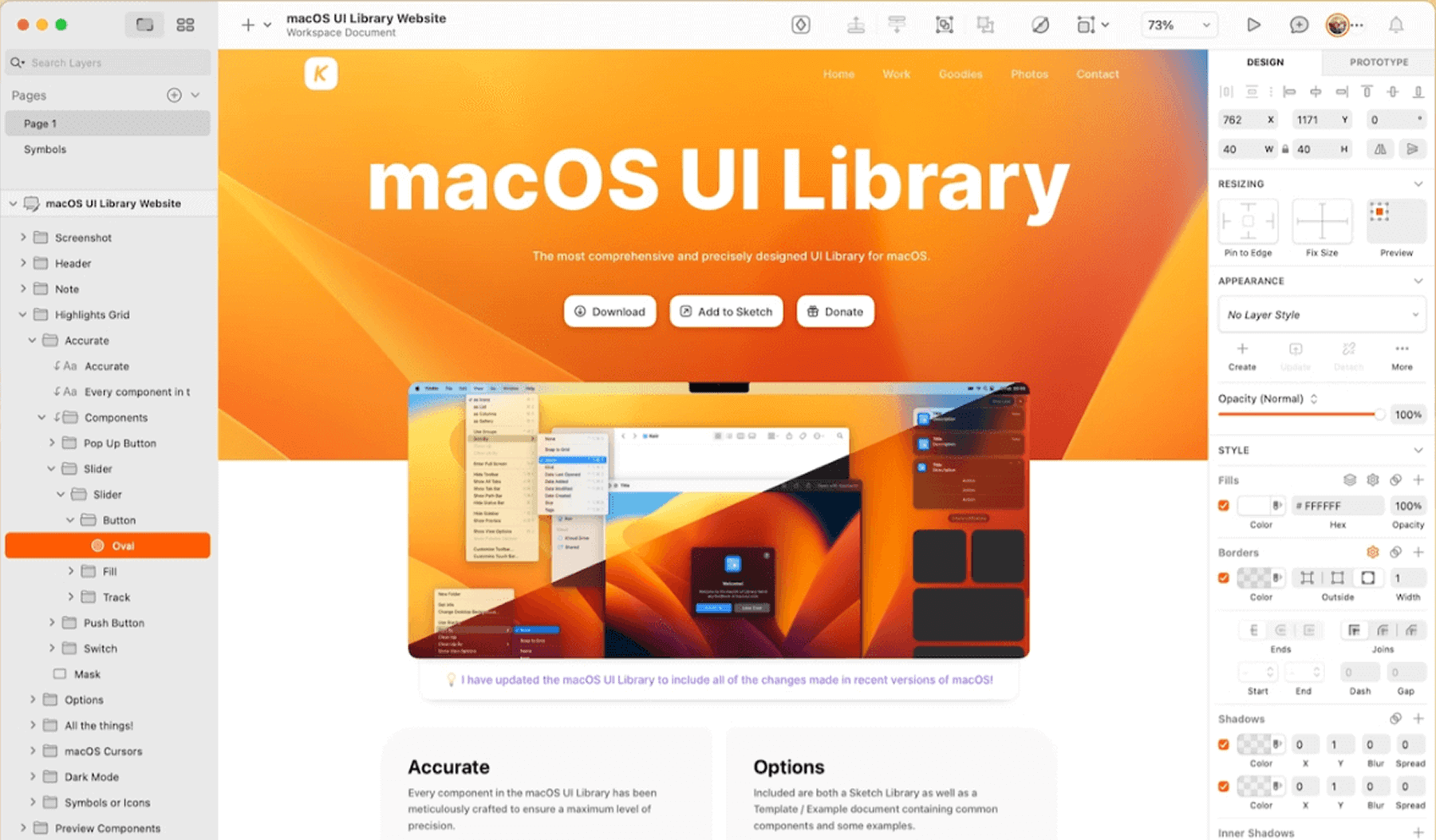
· Layer Management: In the right panel of Sketch, there is a "Layers" tab for managing layers. Click the "+" button to add a new layer, drag the layer to adjust the layer order, and right-click the layer to perform more operations, such as copying, deleting, renaming, etc
· Masks and Boolean Operations: The mask tool can be used through the "Use as mask" option in the toolbar or right-click menu. Boolean operations require selecting the graphics to be calculated first, and then operating through the top toolbar. These functions can help you create complex graphics and layouts
· Component Creation: Select the element that needs to be created as a component, and click the "Create component" button to create it as a component. The created component will be displayed in the "Assets" panel and can be reused at any time
· Prototyping: In the "Prototype" tab, you can set interactive links and transition effects between pages. Select the element to which interaction needs to be added, click the "Add interaction" button, and then set the target page and transition effect
In short, if you are looking for a powerful, easy-to-use and cross-platform design tool, Prodes is undoubtedly your best choice. Prodes's rich online prototyping functions, massive material resources and excellent team collaboration capabilities will bring new experiences and infinite possibilities to your design work
If you want to migrate your Sketch files to Prodes? Don't worry, Prodes supports Download and install Sketch Plugin, helping you migrate seamlessly and achieve perfect tool switching. Choose Prodes now and start your efficient design journey!